

Configuring a WordPress speed plugin can feel overwhelming when dealing with dozens of toggles. OptiWave organizes all performance controls into 10 structured dashboard sections. Setting up OptiWave correctly ensures your site achieves sub-second load times without breaking layouts or WooCommerce checkout flows. In this complete 10-section settings guide, we will walk through every option across all 10 admin panels to help you achieve 100/100 PageSpeed scores in 2026.
Table of Contents
1. Dashboard and Overview

The main Dashboard panel provides real-time system metrics, cache status monitoring, and instant action triggers:
- Stats Row: Real-time counts of Cached Pages, Preload Queue items, and Cleanable Database Junk items.
- Quick Actions: Includes “Preload Cache Only” (warm cache without wiping existing files) and “Purge and Preload Cache” (full site cache refresh).
- System Information: Displays PHP Version, Server type (Apache, Nginx, LiteSpeed, or Hybrid), Memory Limit, Max Execution Time, and CDN Status.
2. Page Caching
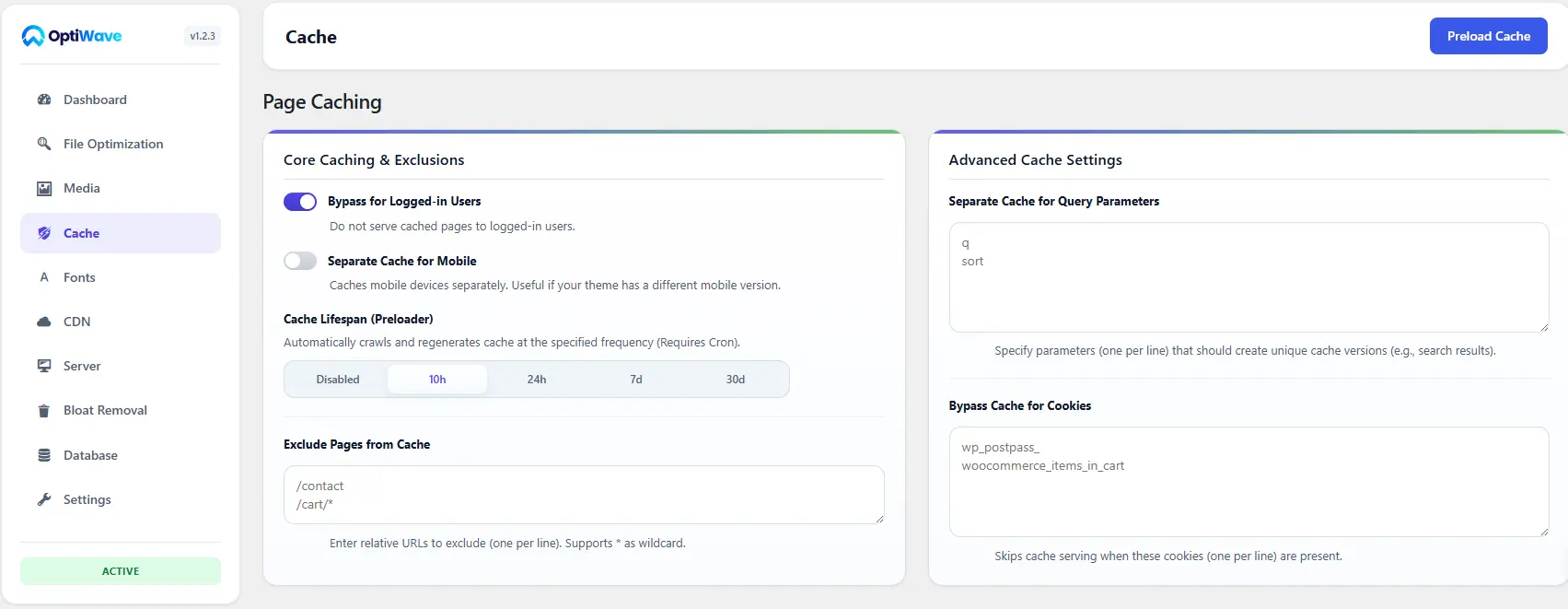
The Cache section manages static page generation, user session rules, and cache lifespan schedules:
2.1. Bypass for Logged-In Users (ON)
Always keep this enabled. Logged-in administrators and customers require dynamic views of admin tools and account pages. Bypassing page cache for logged-in users prevents admin bar caching issues.
2.2. Separate Cache for Mobile (Optional)
Enable only if your site uses a dedicated mobile theme or serves different HTML structures to mobile devices. Responsive CSS themes do not require separate mobile caching.
2.3. Cache Lifespan (10h, 24h, 7d, 30d)
Recommended: 24h or 7d. Sets how often the background preloader crawls and regenerates static HTML cache files.
2.4. Cache Exclusions and Query Parameters
OptiWave automatically excludes WooCommerce cart, checkout, and my-account pages. Enter relative URLs (one per line, supporting wildcard asterisks) to exclude custom dynamic forms, or list query parameters (like search terms) that should generate unique cache versions.
3. File Optimization (CSS, JS and HTML)
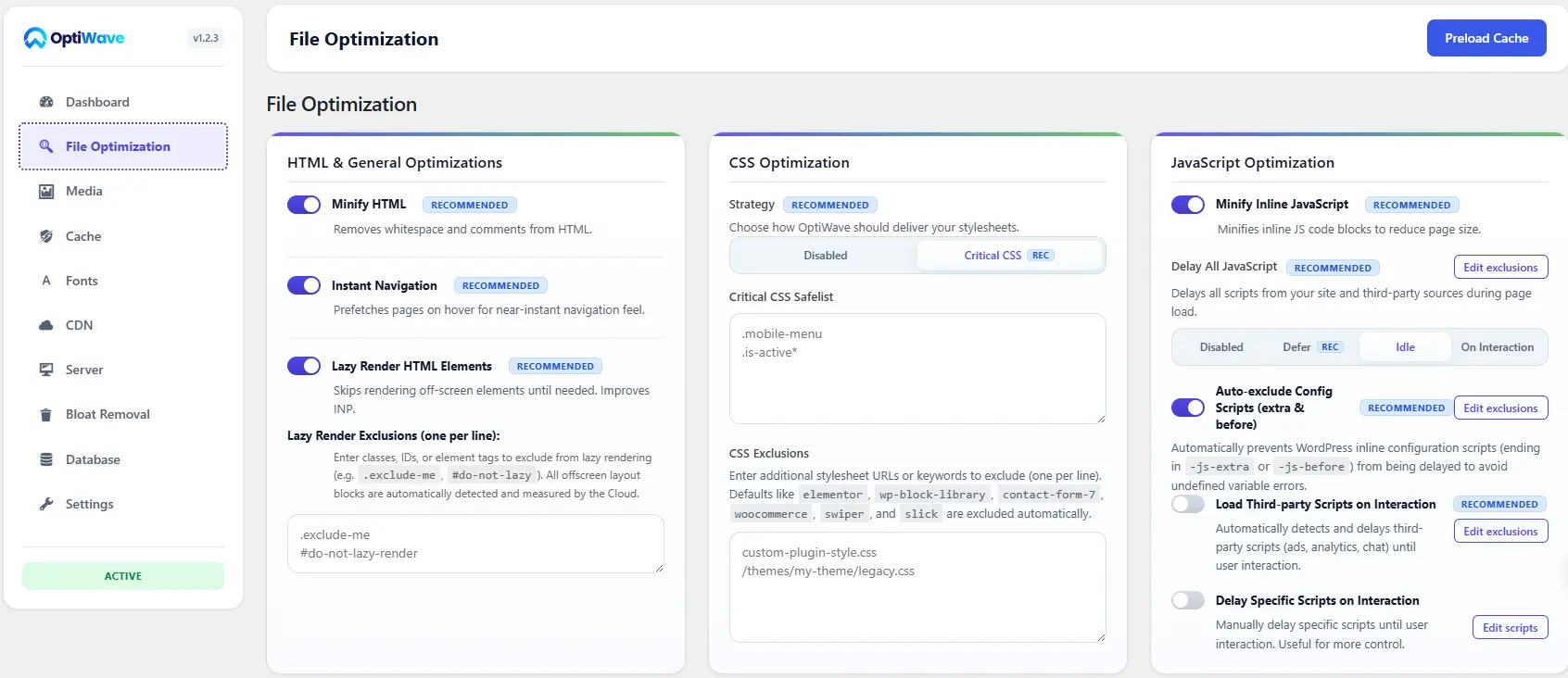
The Optimization section controls code minification, Critical CSS generation, and JavaScript scheduling:
3.1. HTML and Experience Optimizations
- Minify HTML (ON): Removes whitespace and HTML comments to reduce document size.
- Instant Navigation (ON): Injects browser Speculation Rules to prefetch pages on hover for 0ms transition delays.
- Lazy Render HTML Elements (ON): Skips rendering off-screen DOM blocks until scrolled into view, significantly improving INP scores.
3.2. CSS Optimization and Critical CSS
Select Critical CSS as your CSS delivery strategy. OptiWave automatically generates above-the-fold Critical CSS for each page, allowing the browser to paint hero sections instantly while deferring heavy non-critical stylesheets in the background.
- Critical CSS Safelist: Use the Safelist textarea to ensure interactive or dynamic CSS selectors (such as active state classes or mobile navigation toggles) are always included in the critical rendering path.
- CSS Exclusions (Trimming Heavy Stylesheets from Critical CSS): Certain page builders and complex plugins load large stylesheets containing hundreds of non-critical utility classes and excess styling rules. Use the CSS Exclusions box to enter stylesheet URLs or keywords (one per line) to prevent those heavy files from expanding your Critical CSS payload. Excluded stylesheets are deferred and loaded asynchronously in the background, keeping your Critical CSS payload compact and fast. OptiWave automatically excludes large default stylesheets like
elementor,wp-block-library,contact-form-7,woocommerce,swiper, andslickout of the box.
3.3. JavaScript Optimization Strategies
- Minify Inline JavaScript (ON): Compresses inline script tags.
- Delay All JavaScript: Choose Defer (parallel download after HTML parse), Idle (executes during main thread idle time), or On Interaction.
- Auto-Exclude Config Scripts (ON): Automatically protects inline WordPress configuration scripts (ending in
-js-extraor-js-before) from being delayed to prevent JavaScript errors. - Load Third-party Scripts on Interaction (ON): Automatically detects and postpones third-party advertising, analytics, and live chat scripts until a visitor scrolls, clicks, or types, dramatically improving INP scores.
- Delay Specific Scripts on Interaction: Target specific script handles or inline patterns to hold back until user interaction.
4. Media Optimization (WebP, AVIF and Lazy Loading)
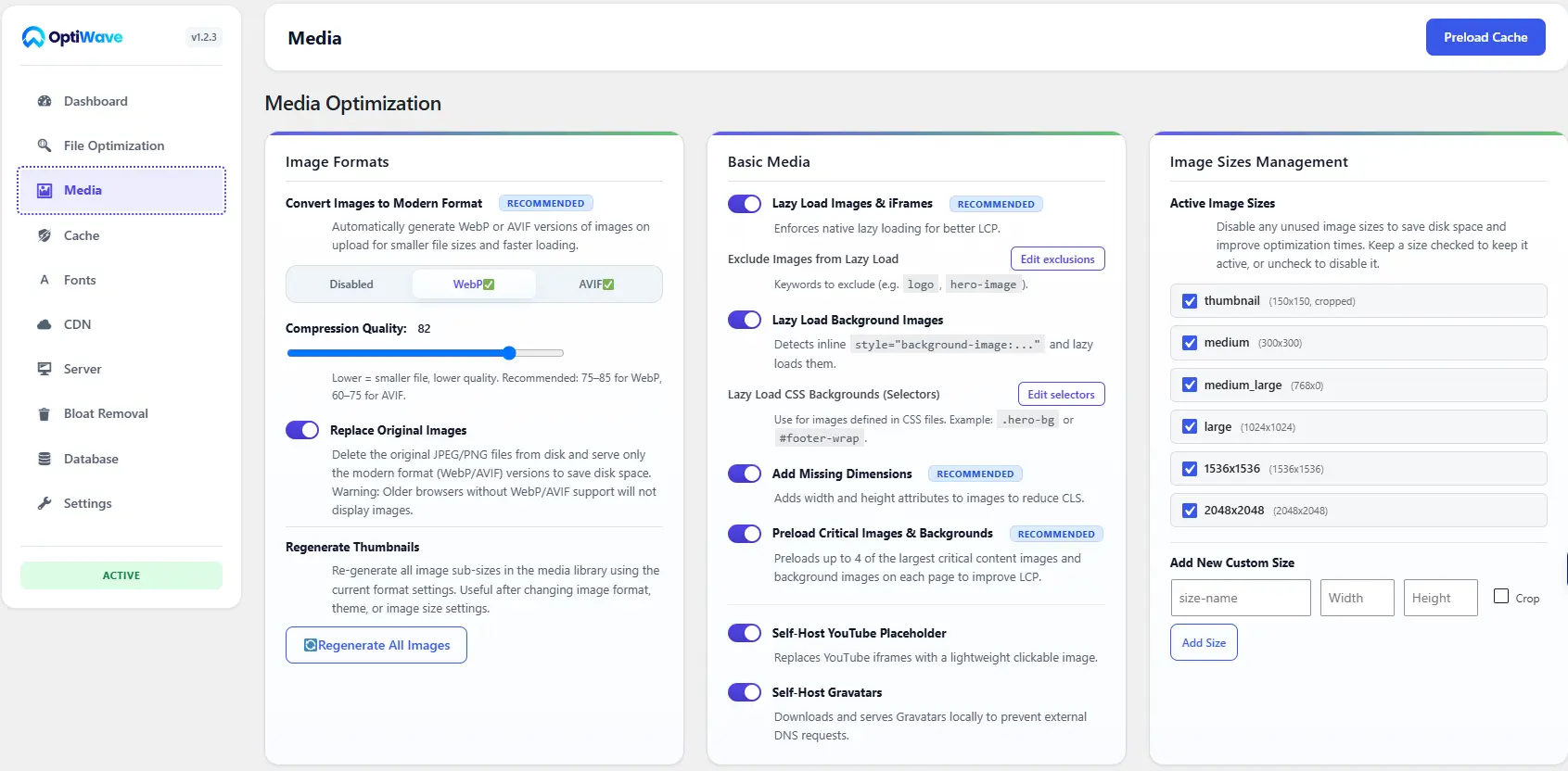
The Media section manages modern image format conversions and lazy loading:
- Modern Image Formats (WebP / AVIF): Converts JPEG and PNG uploads to WebP or AVIF automatically. The dashboard auto-detects server GD/ImageMagick support for each format.
- Compression Quality: Adjust the quality slider (recommended: 75 to 85 for WebP, 60 to 75 for AVIF).
- Regenerate Thumbnails: Re-processes your entire media library into modern formats with a live progress bar.
- Replace Original Images (ON): Updates frontend image URLs to serve WebP and AVIF to visitors while keeping your original JPEG and PNG files completely safe on disk. To free up server disk space later, you can click Delete Original Images, or click Restore Originals anytime to revert image links instantly.
- Lazy Load Images & iFrames (ON): Loads offscreen images and iframes as visitors scroll down to accelerate initial page rendering, with granular image and class exclusions.
- Lazy Load Background Images (ON): Defers inline CSS backgrounds and allows targeting background images in external stylesheets using custom CSS selectors (e.g.
.hero-bg,#footer-wrap). - Add Missing Dimensions (ON): Automatically adds width and height attributes to image tags to prevent Cumulative Layout Shift (CLS).
- Preload Critical Images & Backgrounds (ON): Automatically preloads the main hero image or largest top-of-page image to boost Largest Contentful Paint (LCP) scores.
- Self-Host YouTube Placeholder & Gravatars (ON): Swaps heavy 800KB+ YouTube embeds for a fast 15KB preview thumbnail, and saves user avatars locally to eliminate external third-party requests.
- Image Sizes Management: Disable unused image dimensions generated by WordPress or your theme (e.g. 1536×1536, 2048×2048) and create custom dimensions with width, height, and crop options.
5. Font Optimization
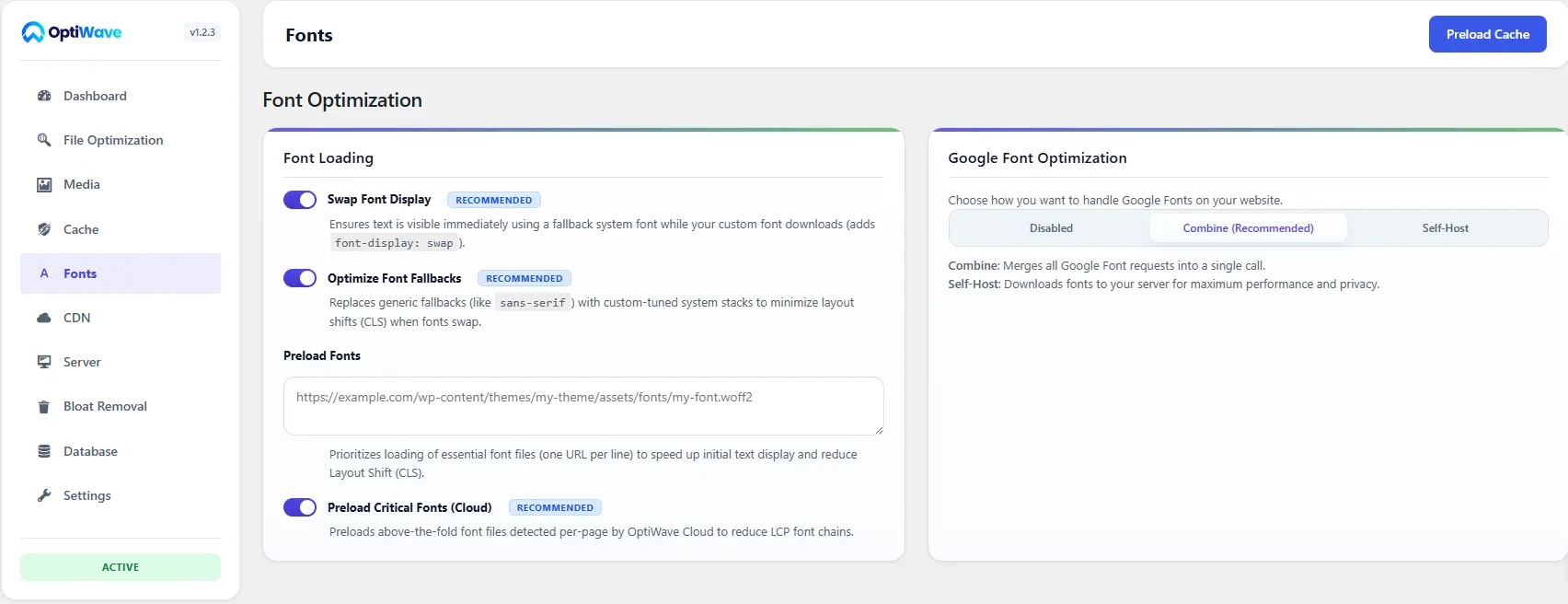
The Fonts section eliminates render pauses and font-swapping layout shifts (CLS):
- Swap Font Display (ON): Injects
font-display: swapto display fallback text instantly while custom fonts download. - Optimize Font Fallbacks (ON): Tunes fallback font size-adjust properties to match custom font geometry and eliminate layout shifts.
- Preload Critical Fonts (Cloud) (ON): Automatically preloads above-the-fold WOFF2 font files per page.
- Google Font Optimization Modes: Choose between Combine (Recommended) to merge all Google Font calls into a single asynchronous request for fewer HTTP connections, or Self-Host to download WOFF2 fonts locally for maximum speed and 100% GDPR compliance.
- Preload Fonts: Use the dedicated Preload Fonts textarea to manually preload critical font URLs that visitors need first.
6. CDN and Cloudflare Integration
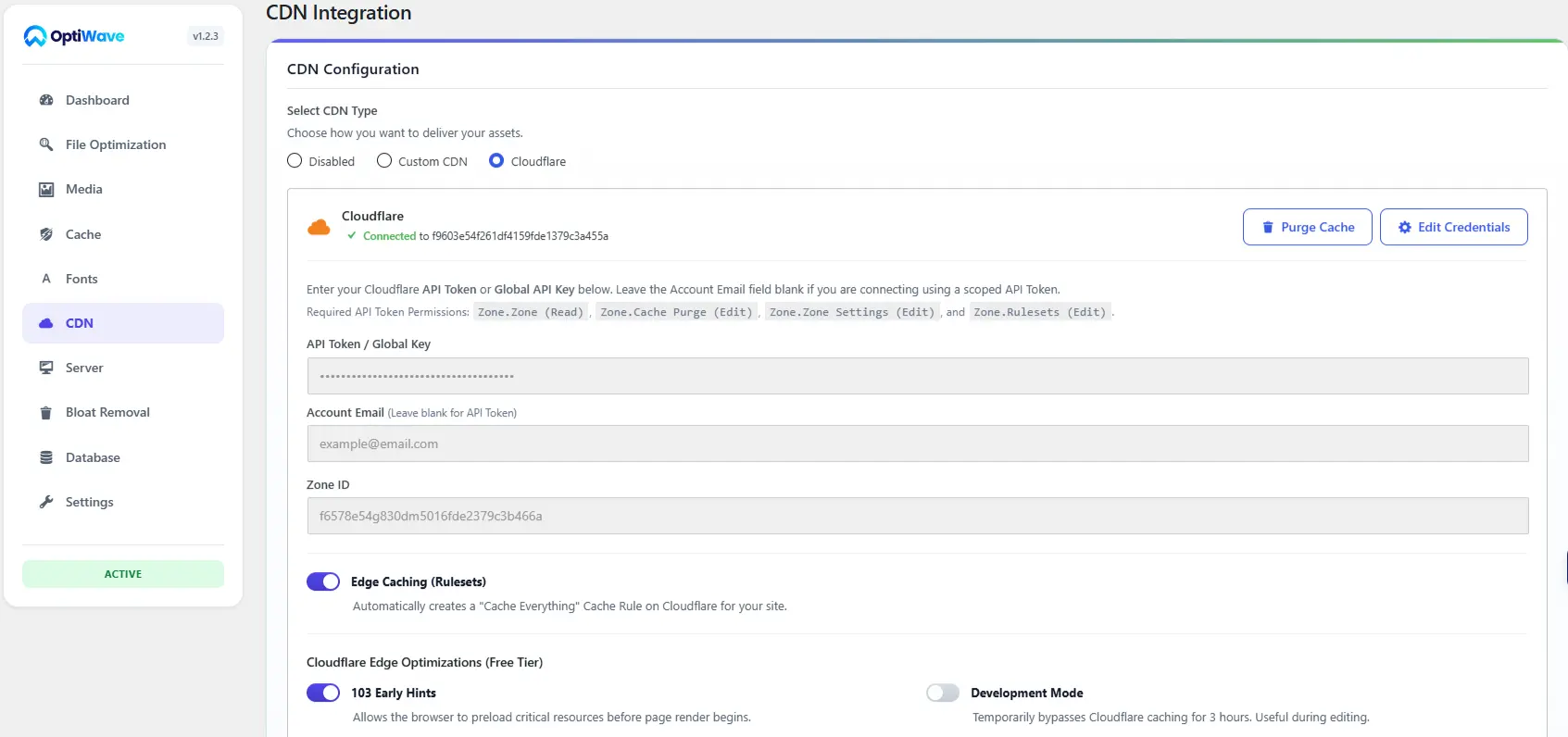
The CDN section manages global content delivery networks:
- Custom CDN: Enter your CNAME URL (e.g.
https://cdn.example.com), toggle header preconnect tags, and select file types to serve (All Assets, CSS/JS/Fonts, or Images Only). - Cloudflare API Integration: Connect Zone ID and API keys for automated edge cache purging and Cache-Control header synchronization.
- Edge Caching (Rulesets) (ON): Automatically provisions Cloudflare Cache Rules to cache and serve static HTML pages directly from Cloudflare global edge data centers.
- Static Asset Cache Rule (ON): Dedicated edge rule to cache static assets while preserving Free plan rule capacity.
- Cloudflare Free-Tier Edge Suite: Includes 103 Early Hints (preloading critical resources before initial HTML rendering), Development Mode (3-hour staging cache bypass), Cloudflare Speed Brain (edge prefetching), and Smart Tiered Cache (regional routing).
7. Bloat Removal
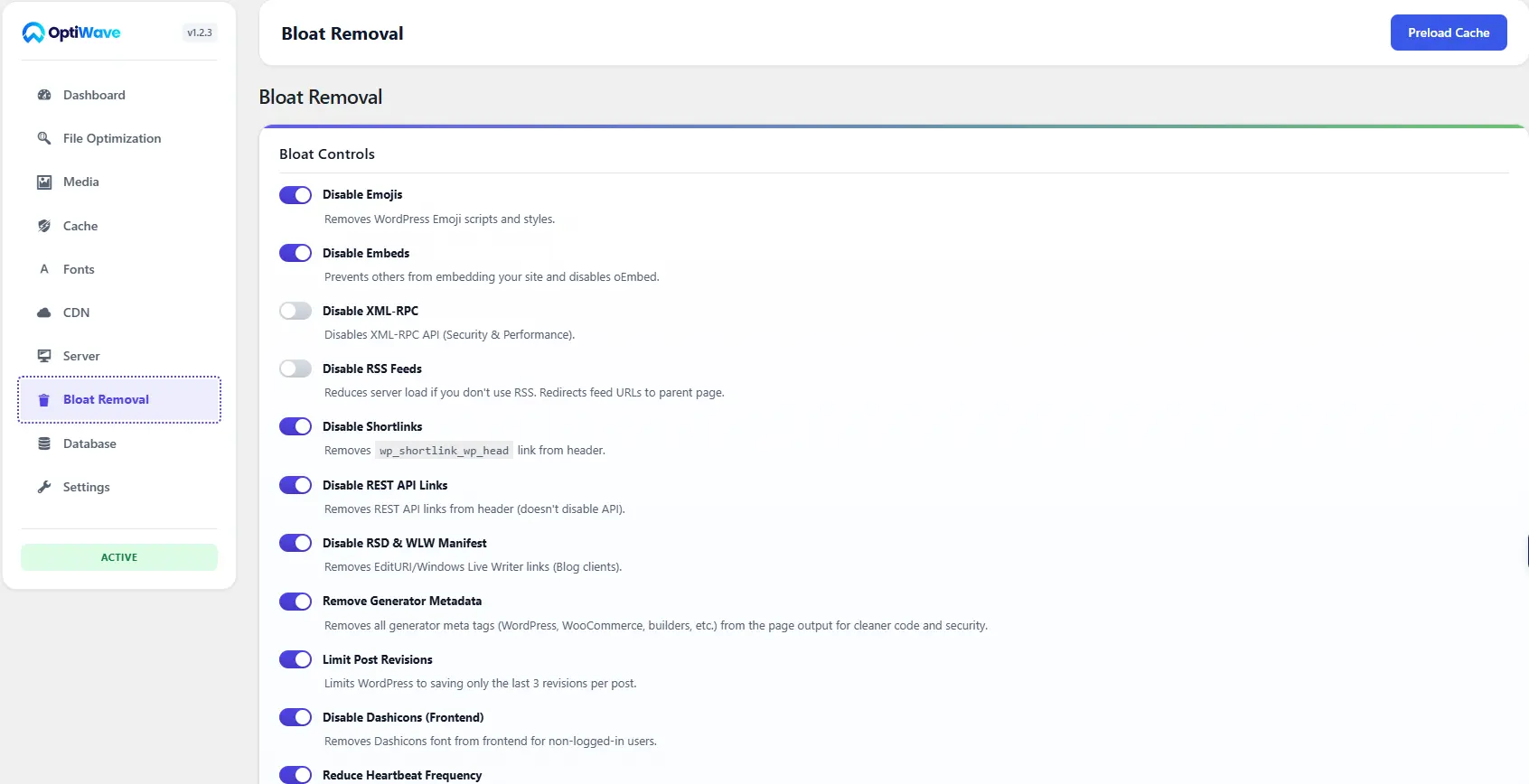
The Bloat section disables unnecessary WordPress core features to clean header code and reduce PHP overhead:
- Disable Emojis script and inline styles
- Disable oEmbed discovery and embedding
- Disable XML-RPC API access
- Disable RSS feeds (redirects feed requests to parent page)
- Disable shortlinks header tags
- Disable REST API header links
- Disable RSD and Windows Live Writer manifests
- Remove Generator metadata from HTML output
- Limit Post Revisions to 3 per post
- Disable Dashicons on frontend for non-logged-in users
- Reduce Heartbeat API execution frequency
8. Database Optimization
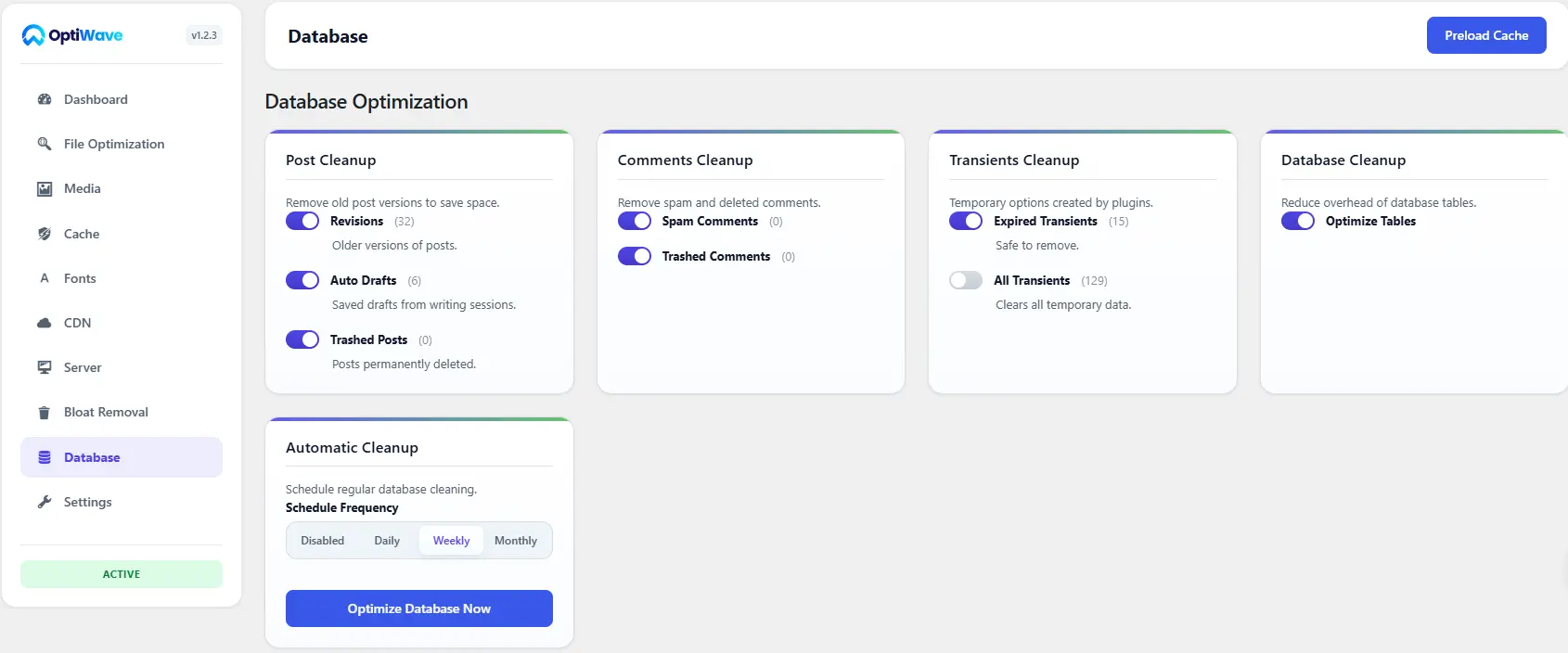
The Database section keeps SQL table queries fast with targeted cleanups:
- Post Cleanup: Revisions, Auto Drafts, and Trashed Posts.
- Comments Cleanup: Spam Comments and Trashed Comments.
- Transients Cleanup: Expired Transients and All Transients.
- Database Cleanup: Optimize SQL table overhead.
- Automatic Cleanup Schedule: Choose Daily, Weekly, or Monthly automated database optimization.
9. Server Configuration (Apache, Nginx, LiteSpeed)
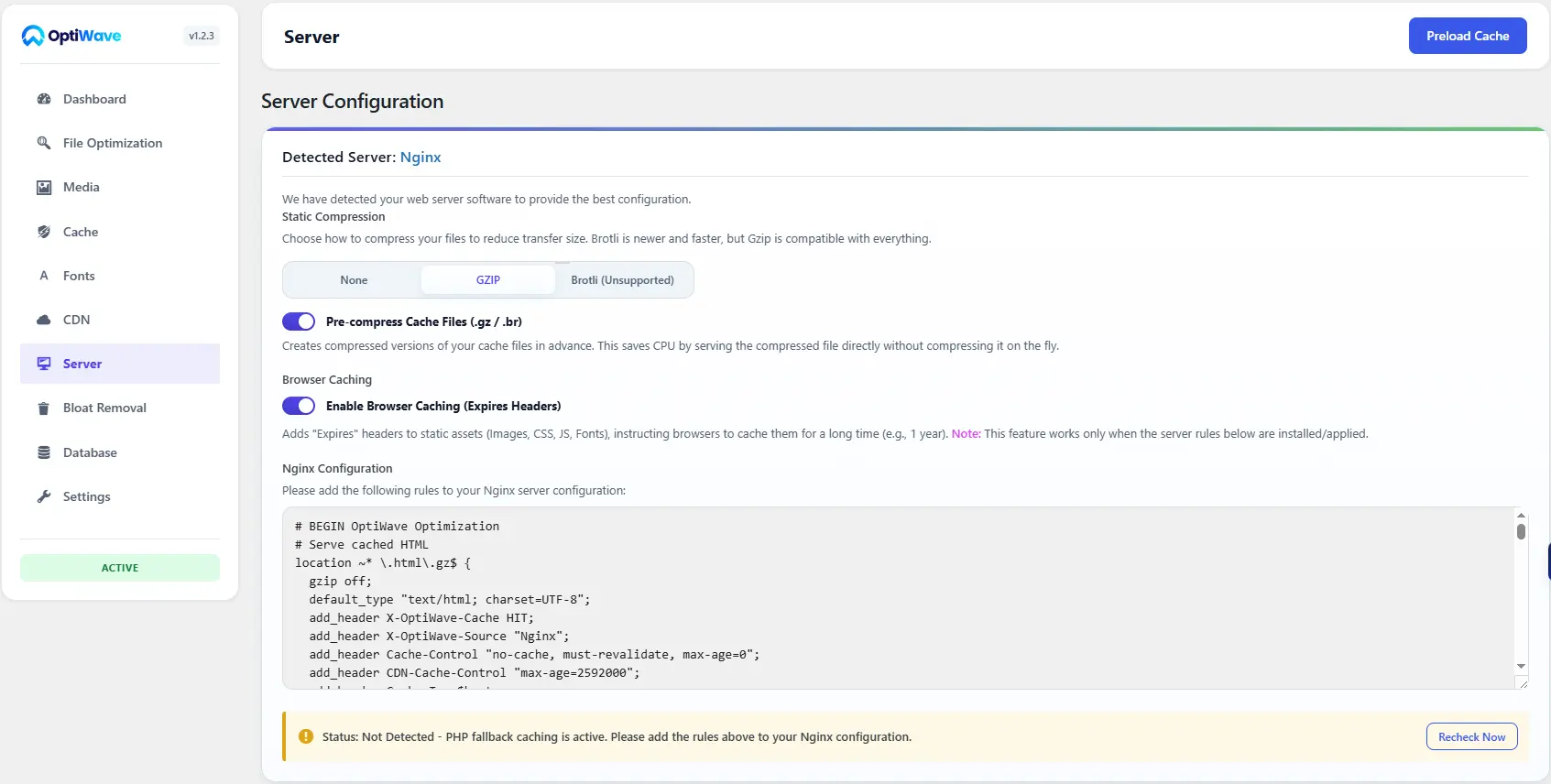
The Server section adapts caching mechanisms to your specific web host architecture:
- Detected Server Software: Identifies Apache, Nginx, LiteSpeed, or Hybrid Apache and Nginx environments automatically.
- Static Compression: Pre-compresses static cache files into GZIP Level 9 (
.html.gz) as a universal baseline, and generates Brotli Level 11 (.html.br) when the host PHP environment supports it. - Browser Caching: Generates Expires headers for static media, fonts, and scripts.
- Rewrite Rules Installation: One-click
.htaccessinstallation for Apache and LiteSpeed, or copy-paste config block verification for Nginx servers.
10. Plugin Settings and License Management
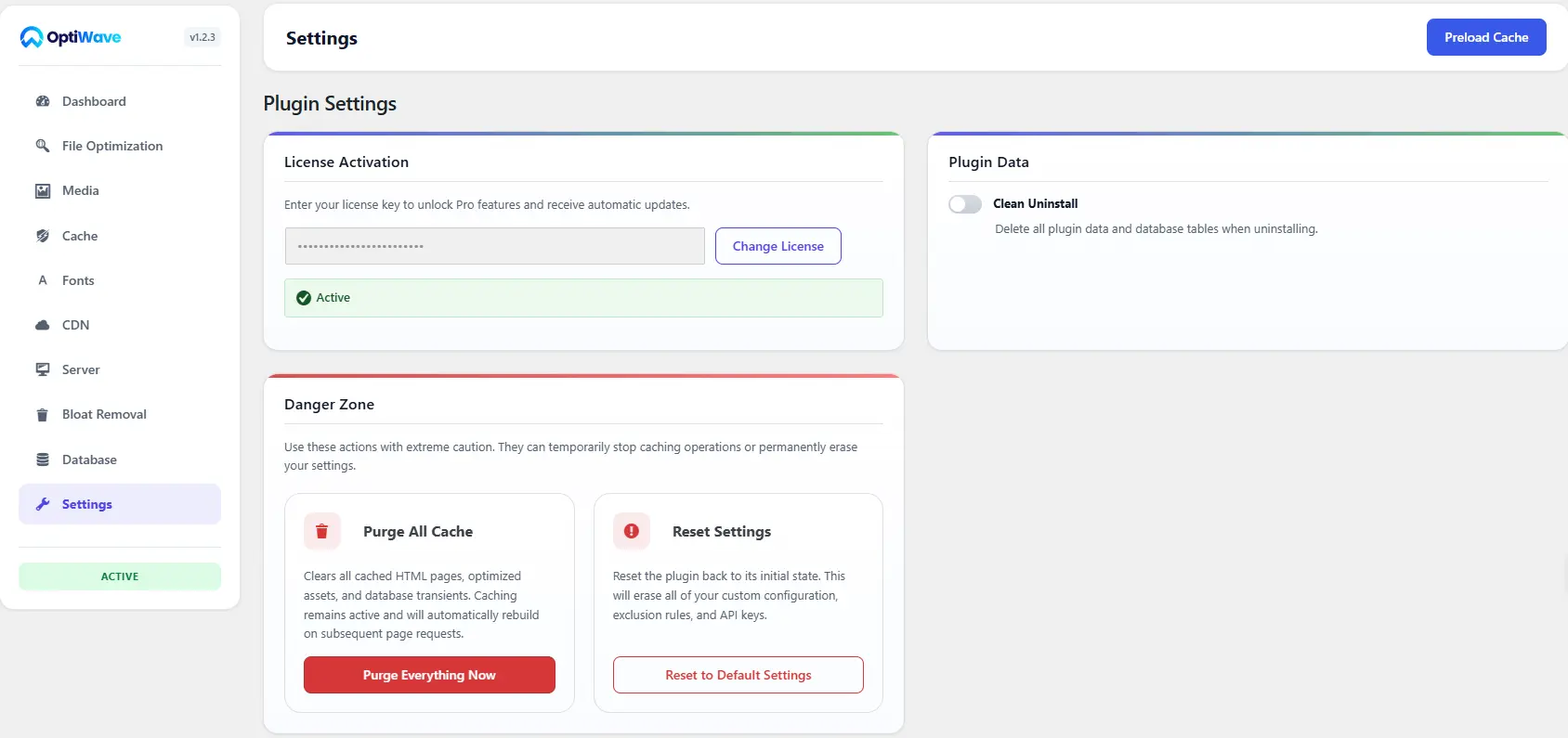
The Settings section controls license key activation and maintenance tools:
- License Activation: Enter and activate your Pro license key to unlock automatic updates and Cloud features.
- Clean Uninstall (Optional): Toggles automatic removal of all database tables and plugin data upon uninstallation.
- Danger Zone: Contains “Purge All Cache” (wipes all cached static files and transients) and “Reset Settings” (resets plugin configuration to initial defaults).
Frequently Asked Questions
How many settings sections does OptiWave have?
OptiWave features 10 organized dashboard sections: 1. Dashboard, 2. Page Caching, 3. File Optimization, 4. Media Optimization, 5. Font Optimization, 6. CDN Integration, 7. Bloat Removal, 8. Database Optimization, 9. Server Configuration, and 10. Plugin Settings.
Will OptiWave caching break my WooCommerce checkout?
No. OptiWave automatically detects WooCommerce and excludes cart, checkout, and my-account pages from caching, script delays, and prefetching rules.
Ready to optimize your site? Explore OptiWave plans →