

This guide is part of our in-depth performance engineering series on WordPress speed optimization. For the complete high-level architecture, start with our foundational 3-step framework.
If your WordPress site feels snappy on your desktop Wi-Fi but Google PageSpeed Insights keeps throwing a red 4.2-second Largest Contentful Paint warning on mobile, you aren’t crazy. It’s frustrating. You’ve compressed your images. You’ve toggled caching. But your visitors still stare at a blank white viewport while the hero graphic stalls. It doesn’t have to stay that way. And stacking more plugins won’t solve it.
To optimize Largest Contentful Paint in WordPress below 2.5 seconds, you have to treat LCP as a strict four-part mechanical pipeline rather than a generic photo resizing problem. Largest Contentful Paint (LCP) tracks how long it takes for the single largest visual element in the viewport to paint on screen. In standard WordPress sites, that’s almost always your featured hero banner, a WooCommerce product showcase, or an above-the-fold headline. If your server stumbles, if bulky CSS chokes the parser, or if lazy loading holds back your hero graphic, your score collapses. Speed is math. It’s that simple. Once you break LCP into its four distinct time budgets, passing Core Web Vitals becomes predictable engineering instead of frantic guessing.
Having studied systems information at university, I’ve spent the past decade analyzing web performance from the bare metal up. Across more than 3,000 custom web platforms, high-concurrency Node.js event loops, Laravel enterprise APIs, and high-traffic WordPress builds we’ve engineered at our development company since 2015, slow LCP is never an unsolvable mystery. But it’s almost always a chain reaction. Three small bottlenecks compound into a multi-second delay. Let’s look at the exact physics behind your page load timeline. We’ll strip away every millisecond of waste.
Table of Contents
1. Google LCP Thresholds and CrUX 75th Percentile Evaluation
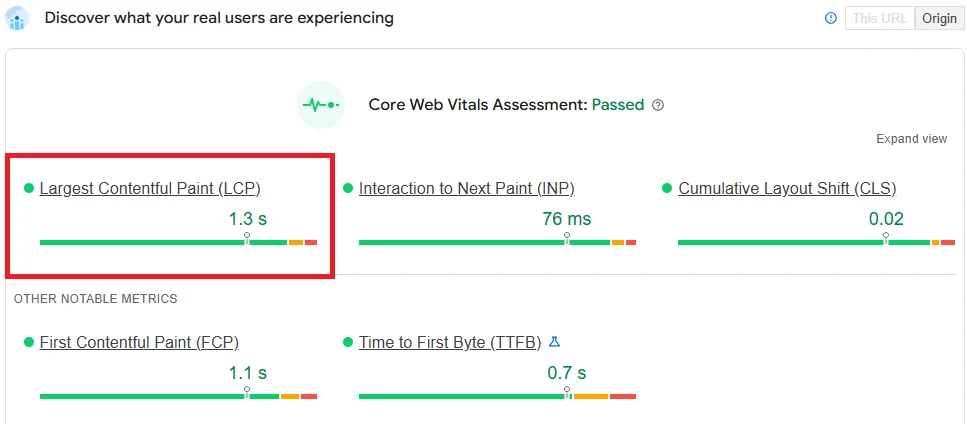
Google defines a good Largest Contentful Paint score as 2.5 seconds or less measured at the 75th percentile of real-world visits in the Chrome User Experience Report (CrUX). Don’t ignore that distinction. Testing on an uncapped fiber connection in your browser DevTools tells you very little about real users. Google doesn’t rank your site based on your office workstation. It ranks you based on field data collected from mid-range smartphones running on congested 4G mobile towers. You can verify these official parameters directly in the web.dev LCP documentation.
Here’s how Google grades your Largest Contentful Paint in field data:
| Metric Rating | Field Threshold (75th Percentile) | User Impact & Search Visibility |
|---|---|---|
| Good (Passing) | Under 2.5 seconds | Smooth visual transition; qualifies for maximum Google Page Experience ranking signals. |
| Needs Improvement | 2.5s to 4.0 seconds | Noticeable rendering pause; mobile visitors bounce before engaging with your call to action. |
| Poor (Failing) | Over 4.0 seconds | Severe loading friction; fails Core Web Vitals assessment, directly harming search rankings. |
Look at that 75th percentile rule closely. If three out of four mobile visitors load your site in 2.1 seconds, but the fourth takes 2.9 seconds because their mobile cell signal dipped, your page fails. That’s harsh. But that’s how Google calculates Core Web Vitals compliance. No exceptions. When an origin server delivers content across an oversold network where CPU cycles are throttled and TLS negotiations are delayed by sluggish certificate handshakes, every downstream milestone in the browser rendering pipeline suffers a severe compounding penalty. In our client audits, we don’t settle for a 2.4-second lab score. We aim for a sub-1.8s mobile LCP. Every millisecond counts. That cushion guarantees that when real users encounter network jitter, your site still passes comfortably.
2. The 4 Sub-Parts of the LCP Lifecycle
Don’t treat LCP as a single monolithic block of time. It isn’t. Not at all. Chrome’s rendering engine actually splits your LCP timeline into four distinct, sequential stages. To systematically optimize Largest Contentful Paint in WordPress, you have to assign a strict millisecond budget to each slice:
- 1. Time to First Byte (TTFB) (< 800ms budget, target < 150ms): The time from the initial HTTP request until the server sends back the first byte of HTML. If your server takes 1.4 seconds to boot PHP and query MySQL, you’ve already burned half your total LCP budget before the browser can even read a single HTML tag. You can benchmark your origin latency with our free global TTFB checker tool, and check our deep dive on how to reduce initial server response time in WordPress to fix origin delays.
- 2. Resource Load Delay (< 10% of budget, target < 100ms): The gap between when the browser receives the HTML and when it begins requesting the LCP asset. In a clean setup, this delay is zero. But if your hero image is buried in an external CSS stylesheet or held back by lazy loading, this delay can drag on for two full seconds.
- 3. Resource Load Duration (< 40% of budget, target < 800ms): The physical transfer time needed to download the image file or font over the network. This depends on payload size, CDN caching, and modern compression formats like AVIF or WebP.
- 4. Element Render Delay (< 10% of budget, target < 150ms): The duration between the file arriving in browser memory and the pixels painting on screen. Long tasks in JavaScript or bloated stylesheets delay this final paint. While JavaScript long tasks primarily hurt interaction latency (as covered in our guide on how to optimize Interaction to Next Paint (INP) in WordPress), they also block the main thread during boot, delaying your LCP paint.
Once you visualize LCP as an assembly line, debugging becomes simple. If your file downloads in 120ms but your Resource Load Delay is 1.6 seconds, compressing the image won’t help you. You’ve got an asset discovery problem. Let’s fix that. Right now.
3. Identifying Your True LCP Element (Viewport Area vs File Size)
Here’s a trap that catches many developers off guard: Google doesn’t choose the heaviest file on your page as the LCP element. It selects the candidate that covers the greatest visible pixel surface area inside the initial device viewport. Surface area rules.
On WordPress sites, your LCP candidate is almost always one of three things:
- A native <img> element: A featured post banner, a product gallery photo, or a prominent above-the-fold logo graphic.
- A CSS background image: A hero container or section styled with
background-image: url(...)inside Elementor, Divi, or custom theme templates. - A major typography block: A large
<h1>title spanning three lines, or a hero marketing paragraph that renders before your media files load.
Don’t guess which one it is. Check it. Open Chrome DevTools, open the Performance panel, and click record while refreshing your page. In the Timings lane, click the LCP tag. Check the Related Node in the summary window below. Chrome will pinpoint the exact DOM element triggering the metric. You can also run a test in PageSpeed Insights and expand the “Largest Contentful Paint element” diagnostic card. Quick. Precise.
4. The Lazy Loading Disaster: Why Hero Images Stall
Lazy loading is wonderful for images down the page. It saves mobile bandwidth by waiting until the reader scrolls before fetching photos. But when lazy loading hits your top hero image, it causes chaos. Total chaos. PageSpeed Insights flags this with an unmistakable warning: “Largest Contentful Paint image was lazily loaded”.
Why is lazy loading a hero banner so destructive? It boils down to browser architecture. Plain and simple. When a browser fetches your HTML, its preload scanner immediately parses ahead to find <img> tags so it can start network requests while the main thread compiles stylesheets and scripts. But when it spots loading="lazy", the browser stops. Dead in its tracks. It won’t request the image until the layout engine finishes calculating exact page coordinates. That pause burns 800ms to 2,000ms of pure dead time. You can’t afford that delay.
Ever since WordPress 5.5, core adds loading="lazy" to post images by default. While newer WordPress versions try to skip the first image, theme templates, page builders, and aggressive caching plugins often overwrite this logic and lazy load the hero banner anyway. You can stop this behavior permanently with a simple PHP snippet in your child theme’s functions.php or a custom mu-plugin:
// Disable lazy loading on the first image and assign high priority
add_filter('wp_get_attachment_image_attributes', function($attr, $attachment) {
    static $first_image = true;
    if ($first_image && !is_admin() && is_singular()) {
        unset($attr['loading']); // Prevent lazy loading
        $attr['fetchpriority'] = 'high';
        $first_image = false;
    }
    return $attr;
}, 10, 2);
That snippet removes the lazy loading directive from your first content image and flags it for immediate fetch. The browser starts downloading your featured banner the instant the HTML arrives. No waiting.
5. Assigning fetchpriority=”high” and Preload Directives
Skipping lazy loading stops the browser from stalling on purpose. But you can do even better. Much better. You can tell the browser network scheduler that your hero graphic is more urgent than any other non-blocking resource on the page by adding fetchpriority="high".
By default, browsers classify image requests as Low priority. They assume stylesheets, web fonts, and early scripts deserve preference. Over a congested mobile network with limited bandwidth, your hero image sits in a queue waiting for lower-priority background files to clear. Adding fetchpriority="high" changes the equation. The browser promotes the image request so it downloads alongside critical CSS without waiting in line.
For the fastest possible discovery time, pair fetchpriority="high" on your image tag with an explicit preload link in your document <head>:
<!-- 1. Preload link injected into document <head> -->
<link rel="preload" as="image" href="https://optiwave.me/wp-content/uploads/hero-banner.webp" fetchpriority="high" type="image/webp">

<!-- 2. Image tag in the content body -->
<img src="https://optiwave.me/wp-content/uploads/hero-banner.webp"
     fetchpriority="high"
     loading="eager"
     decoding="async"
     width="1200"
     height="630"
     alt="Optimizing Largest Contentful Paint in WordPress">
Look at how these attributes coordinate: fetchpriority="high" boosts network priority, loading="eager" guarantees immediate execution, decoding="async" offloads decompression to a secondary thread so the UI doesn’t stutter, and explicit width and height attributes prevent layout shifts. That’s clean engineering.
6. Eliminating Render-Blocking CSS and Font Delays
Here’s a problem we see constantly: an image file finishes downloading in 70 milliseconds, but the browser won’t paint it for another two seconds. Why? Because the browser can’t paint anything until it finishes downloading and parsing all synchronous CSS files. This is what drives up your Element Render Delay. By design, browsers treat stylesheets as render-blocking barriers.
To clear this barrier, you need Critical CSS. Critical CSS extracts the bare minimum styling required to display the top of your page (the navigation menu, grid structure, and hero header) and injects it straight into an inline <style> block inside your HTML document. The rest of your heavy theme and plugin stylesheets can then load asynchronously in the background. If you want to eliminate stylesheet bottlenecks, read our complete guide on how to eliminate render-blocking resources in WordPress.
Web fonts create a similar obstacle. If your LCP candidate is an <h1> headline that relies on an external Google Font, the browser hides the words until the font file arrives. That’s called Flash of Invisible Text (FOIT). To prevent text LCP delays:
- Add font-display: swap: Include
font-display: swap;in your font rules. That tells the browser to display system text immediately and swap in your brand font once it arrives. - Preload Critical WOFF2 Files: Preload your primary headline font in your header:
<link rel="preload" href="/fonts/inter.woff2" as="font" type="font/woff2" crossorigin>. - Host Fonts Locally: Don’t make external calls to Google’s CDN. Hosting your WOFF2 files directly on your server saves 80ms to 180ms of DNS lookup and TLS handshake lag.
7. Next-Gen Formats and Responsive Intrinsic Sizing
Once discovery and rendering delays are out of the way, your LCP speed comes down to raw file size (Resource Load Duration). Pushing a 2MB JPEG banner across a shaky mobile network will tank your Core Web Vitals score every time. Don’t do it.
Modern web standards require modern image codecs: WebP and AVIF. Don’t cling to legacy formats. Compared to legacy JPEGs, WebP delivers 25% to 35% smaller file sizes at equal visual quality. AVIF goes even further, slashing file sizes by up to 50% using advanced intra-frame compression from the AV1 video codec. Dramatic gains. A 700KB hero JPEG converted to AVIF often drops below 110KB without any noticeable blur. For full optimization protocols, see our WordPress image optimization guide.
Serving the right dimensions for each screen size is just as vital. When a mobile visitor opens your page on a phone, sending them a 2400-pixel desktop graphic is pure waste. Make sure your theme outputs rich srcset attributes so mobile devices pull a lightweight 600px or 800px variant. And always specify explicit width and height dimensions to reserve visual space and prevent layout shifts, as covered in our guide on fixing Cumulative Layout Shift (CLS) in WordPress.
8. Fixing Elementor and Page Builder CSS Background LCP
A classic stumbling block on sites built with Elementor, Divi, or Beaver Builder is the CSS background image trap. Page builders love styling hero sections by attaching photos to CSS selectors: .elementor-section { background-image: url('hero.jpg'); }. It looks slick in the editor. But for browser performance, it’s terrible. Painful, actually.
Here’s the catch: browser preload scanners can’t see background images declared in external CSS files. The browser has to download your HTML, fetch the external stylesheet, parse the CSS rules, match selectors against the DOM tree, and only then start requesting the image. That adds hundreds of milliseconds of avoidable delay to your LCP score.
To resolve page builder background LCP issues:
- Preload the Background Graphic: Add an explicit
<link rel="preload" as="image" href="..." fetchpriority="high">in your document head so the preload scanner finds it immediately. - Switch to Native <img> Tags: Whenever you can, replace CSS background containers with an actual
<img>tag styled withobject-fit: cover; position: absolute;. Native images give you full priority control, srcset sizing, and instant discovery. - Clean Unused Page Builder Code: Page builders pack massive CSS libraries. Trimming unused rules speeds up stylesheet evaluation, as explained in our tutorial on how to remove unused CSS in WordPress.
9. How to Optimize Largest Contentful Paint in WordPress with OptiWave
Manually hunting down LCP elements across hundreds of posts, configuring preloads, converting WebP files, and inlining Critical CSS takes hours of manual effort. It’s easy to make mistakes. Costly ones, too. That’s why we built OptiWave: to automate your entire Core Web Vitals stack in a single lightweight engine under 500KB.
Instead of stacking multiple conflicting optimization plugins that slow down your server, OptiWave manages your entire LCP optimization workflow seamlessly:
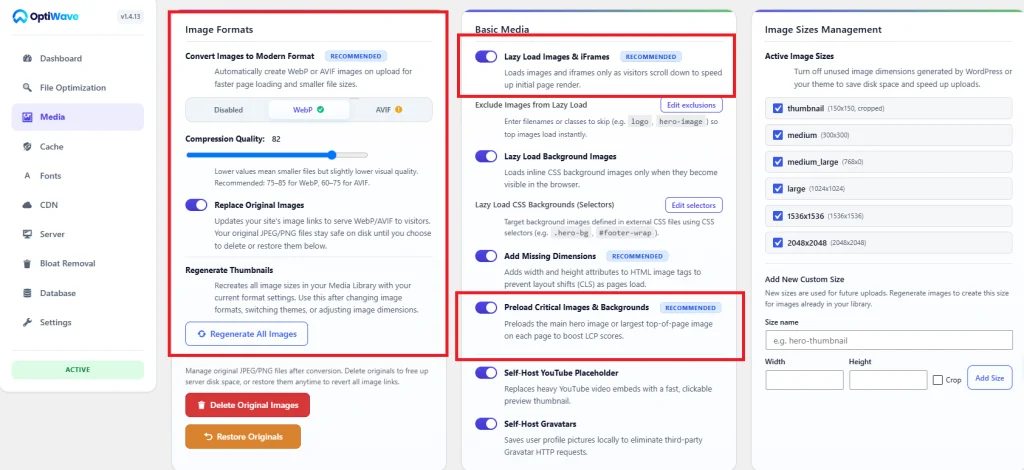
- Automated LCP Viewport Detection: Analyzes true rendered element dimensions across mobile and desktop viewports using headless browser rendering, correctly identifying your real hero candidate without manual tags.
- Instant fetchpriority Injection: Automatically assigns
fetchpriority="high"andloading="eager"to your primary viewport image while stripping out conflicting lazy load attributes. - Dynamic Header Preloading: Injects high-priority preload links into your HTML head so mobile browsers grab your hero banner on the very first network round-trip.
- Next-Gen WebP and AVIF Generation: Generates next-gen image variants on disk at write time, serving them directly from NVMe storage with zero runtime CPU overhead.
- Layer 1 Zero-PHP Caching: Pairs image prioritization with bare-metal server rewrites in Apache, Nginx, or LiteSpeed to drive origin TTFB down to 1 millisecond.
If you’re ready to stop guessing and pass Google’s Largest Contentful Paint benchmark on every single page of your site, explore the OptiWave performance plans today and get your Core Web Vitals permanently into the green.
What is a good LCP score according to Google?
Google defines a good Largest Contentful Paint (LCP) as 2.5 seconds or less for the 75th percentile of recorded user visits. In high-performance engineering, our target for WordPress pages is under 1.8 seconds on 4G mobile connections and under 1.2 seconds on desktop networks.
Why does lazy loading hero images hurt LCP?
Lazy loading tells the browser to pause image downloads until JavaScript calculates viewport scrolling coordinates. When applied to an above-the-fold hero image, lazy loading prevents the browser HTML preload scanner from discovering the asset early. This injects 1 to 3 seconds of artificial load delay directly into your LCP timeline. Never lazy load above-the-fold hero assets.
How does fetchpriority=”high” work in WordPress?
The fetchpriority=”high” attribute instructs the browser network scheduler to treat the image as critical priority. By default, browsers downgrade image requests to Low priority while loading CSS and scripts. Setting fetchpriority=”high” forces the browser to request the hero image simultaneously with critical styles, cutting resource load delay down to zero.
How much of Largest Contentful Paint depends on TTFB?
Time to First Byte acts as the absolute mathematical floor of your entire LCP timeline. Because the browser cannot parse HTML tags, initiate stylesheet downloads, or discover hero images until the origin server returns the first byte, high TTFB consumes your budget before rendering even starts. If your TTFB is 1.5 seconds, you only have 1.0 second left to download and paint your LCP element.