

This guide is part of our in-depth performance engineering series on WordPress speed optimization. For the complete high-level architecture, explore our foundational 3-step framework.
You run your WordPress URL through Google PageSpeed Insights. A bright orange warning flags your site: “Eliminate render-blocking resources”. Beneath it, Google lists a dozen CSS files and JavaScript scripts eating up 1.8 seconds of potential savings. Your screen stays completely blank while the visitor waits. That blank white screen is the death of engagement. Visitors bounce within three seconds. Google penalizes your rankings. It’s an expensive problem. Plain and simple.
To eliminate render-blocking resources WordPress sites must decouple visual presentation from background script execution by extracting above-the-fold Critical CSS and deferring non-essential assets. Render-blocking resources are external stylesheets and synchronous JavaScript tags located in the document head that halt browser parsing while downloading over the network. Because Chromium cannot paint the First Contentful Paint (FCP) or construct the CSS Object Model (CSSOM) until every blocking asset is evaluated, un-optimized assets delay page rendering by multiple seconds. Resolving this bottleneck requires inlining critical viewport styling directly into the HTML head, loading secondary theme stylesheets asynchronously via the media swap pattern, assigning defer execution strategies to JavaScript files, and localizing external web fonts into high-efficiency WOFF2 binaries. When you streamline the critical rendering path, the browser paints immediate visual content on the first TCP network packet, delivering sub-second paint times and passing Core Web Vitals.
Having studied systems information at university, I’ve spent over a decade analyzing browser rendering pipelines, DOM construction trees, and network protocols. Across more than 3,000 custom web platforms, high-concurrency Node.js event loops, Laravel enterprise APIs, and WordPress builds engineered at our development company since 2015, render-blocking resources represent the most common cause of sluggish First Contentful Paint. Browsers don’t stall rendering because they want to. They stall because your HTML forces them to wait for external files before drawing a single pixel. Let’s fix that. We’ll dismantle your render-blocking pipeline step by step and achieve an instant first paint.
Table of Contents
1. The Critical Rendering Path and Why Browsers Halt Paint
To display any webpage, a browser rendering engine must construct two distinct data models in memory: the Document Object Model (DOM) and the CSS Object Model (CSSOM). The DOM represents the HTML tag hierarchy. The CSSOM represents the styling rules mapped to those nodes. When combined, they form the Render Tree. Without a completed Render Tree, painting can’t begin. Dead stop. Total freeze.
Because standard HTML treats every external stylesheet link and synchronous script tag in the document head as render-blocking by default, the browser parsing engine refuses to paint the screen until every single byte of those external files is fully downloaded and parsed into system memory. That means if your WordPress theme enqueues eight separate plugin stylesheets, your visitors stare at a blank white screen while the network resolves each request. And it doesn’t matter how fast your server responded. If your stylesheets block rendering, your First Contentful Paint suffers. That delays your Largest Contentful Paint (LCP) score. It’s that simple.
// Traditional Render-Blocking Sequence
HTML Parse ──> [Blocked by theme.css] ──> [Blocked by plugins.css] ──> Paint First Pixel (Delayed 1,800ms)

// Optimized Critical Path Architecture
HTML Parse ──> [Inline Critical CSS] ──> Instant Paint First Pixel (Sub-300ms)
                 │
                 └──> [Async Secondary CSS & Deferred JS Stream in Background]
Notice the fundamental difference in the optimized flow. By moving non-essential styling and scripts out of the blocking path, the browser renders the initial viewport immediately. We don’t make the user stare at a blank screen. We give them visible content within 300 milliseconds. And that’s how high-performance sites win. Pure speed.
2. Diagnosing Render-Blocking Assets in PageSpeed Insights and Chrome DevTools
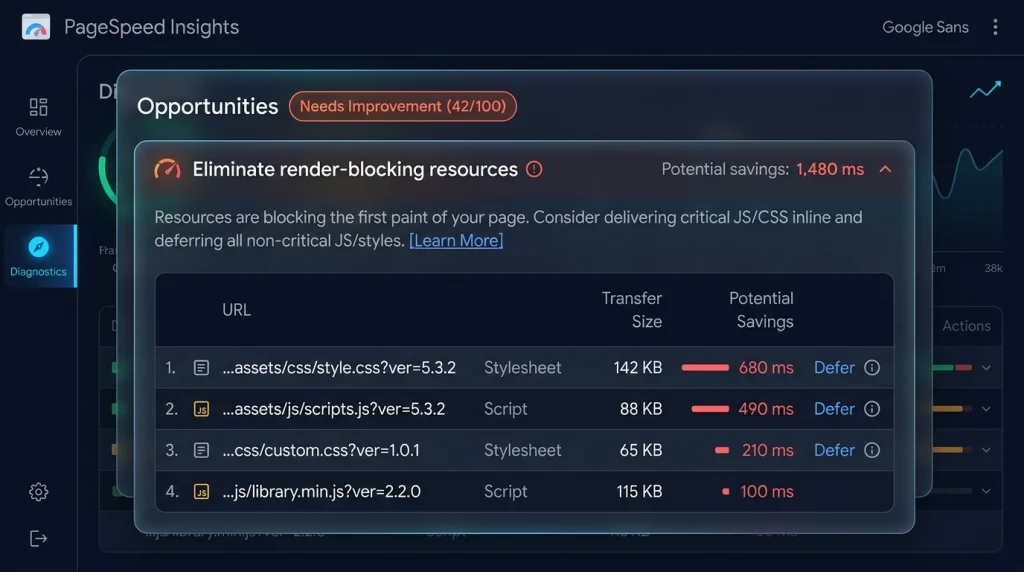
Before eliminating blocking assets, you need to identify which files are responsible. You can’t fix what you haven’t measured. Google PageSpeed Insights highlights these under the “Opportunities” tab. It lists the exact URLs of every blocking stylesheet and script along with estimated transfer sizes and potential timing savings. That’s your audit baseline. Start there.
To see the exact second-by-second waterfall, open Chrome DevTools and navigate to the Network panel. Reload the page with cache disabled. In the waterfall column, look for the “Highest” and “High” priority assets loaded before the initial DOMContentLoaded event. Any CSS file without media="print" and any script without defer or async in the head is holding your layout hostage. But don’t just guess which files matter. Inspect the waterfall. It adds up fast.
3. Fix 1: Extracting and Inlining Viewport-Perfect Critical CSS
The most effective technique to eliminate render-blocking CSS is extracting Critical CSS. Critical CSS is the minimal subset of CSS styling rules required to render the visible above-the-fold viewport for mobile and desktop screens. By stripping away all below-the-fold selectors (footer styling, tab contents, related posts, modal dialogs), you isolate a compact stylesheet between 12KB and 25KB. It’s lean and fast.
Because the initial TCP congestion window transmits approximately 14KB of uncompressed data during the very first network round trip, inlining Critical CSS enables modern mobile browsers to render the complete hero section without waiting for external stylesheet files. No extra stylesheet requests. No render delays. Zero reflow.
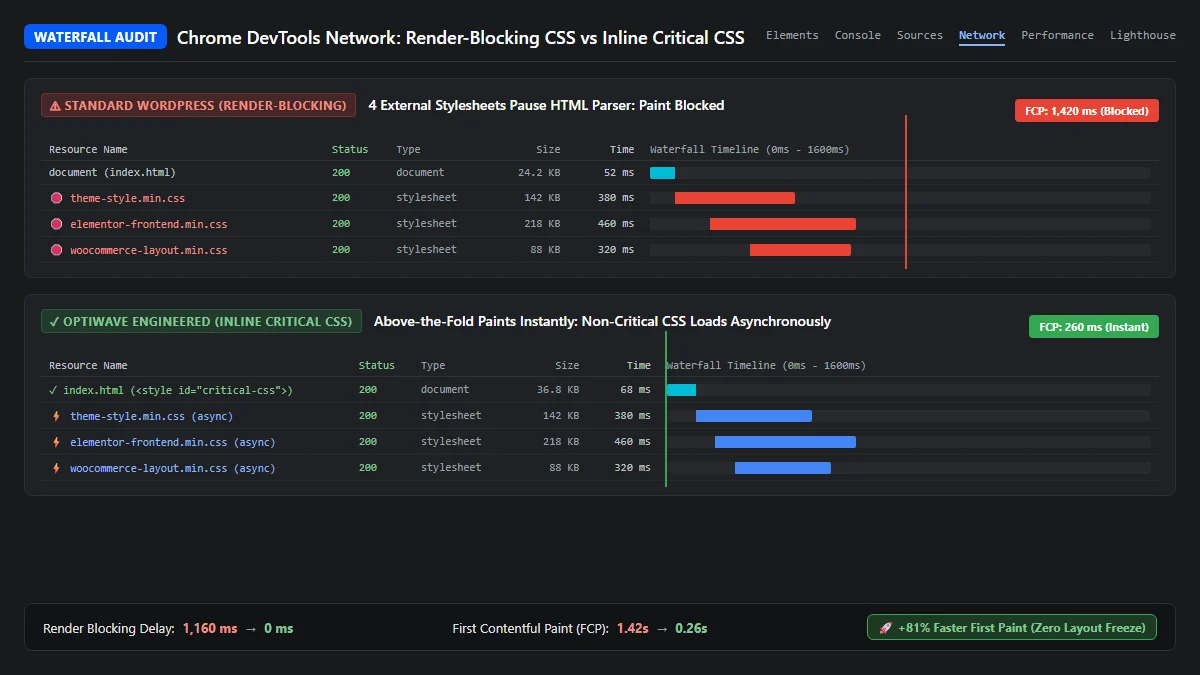
Here is what the clean inlined structure looks like inside your document <head>:
<head>
  <!-- Inline Viewport-Perfect Critical CSS -->
  <style id="optiwave-critical-css">
    :root{--primary:#075af8;--text:#0f172a}
    body{margin:0;font-family:system-ui,-apple-system,sans-serif}
    .site-header{height:72px;display:flex;align-items:center;padding:0 1.5rem}
    .hero{display:grid;grid-template-columns:1fr;min-height:480px;padding:3rem 1.5rem}
    @media(min-width:768px){.hero{grid-template-columns:1.2fr 0.8fr}}
  </style>
</head>
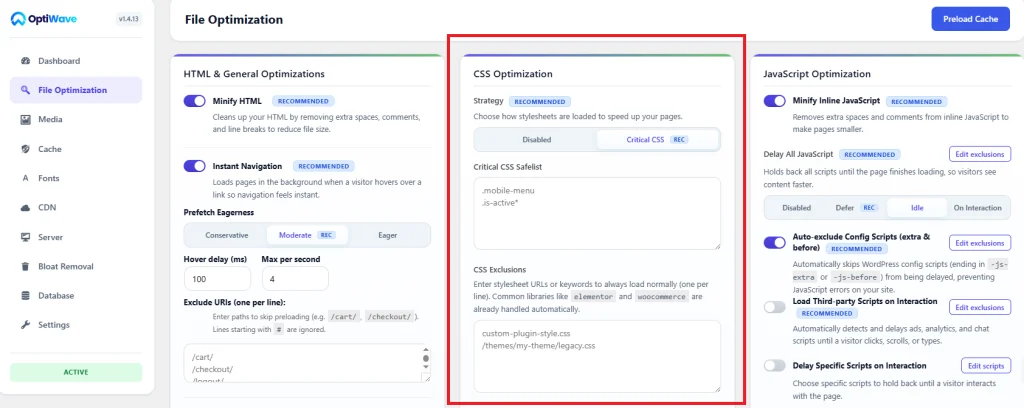
When extracting Critical CSS, you must ensure that dynamic elements like mobile toggle menus, header alerts, and hero typography are included in the extraction safelist. If a crucial mobile navigation style is missing from Critical CSS, users will see an unstyled glitch before full stylesheets arrive. We don’t allow that. Precision matters.
4. Fix 2: Asynchronously Loading Secondary Stylesheets (The Media Swap Pattern)
Once your Critical CSS is inlined, you can’t leave the remaining theme and plugin stylesheets in their default blocking state. If you do, the browser still halts rendering for the full files. You’ve got to instruct the browser to download secondary stylesheets asynchronously without blocking the initial paint. It’s an essential follow-up step.
The industry standard approach is the media swap pattern. By declaring media="print" on the link tag, the browser assigns the stylesheet lowest download priority and doesn’t block screen rendering. Once the stylesheet finishes downloading, the onload event handler switches the media attribute back to all:
<!-- Asynchronous Secondary Stylesheet with Print Media Swap -->
<link rel="stylesheet"
      href="https://optiwave.me/wp-content/themes/optiwave/style.css"
      media="print"
      onload="this.media='all'; this.onload=null;">

<!-- Fallback for Browsers with JavaScript Disabled -->
<noscript>
  <link rel="stylesheet" href="https://optiwave.me/wp-content/themes/optiwave/style.css">
</noscript>
Notice the this.onload=null; statement. That prevents recursive execution loops in certain legacy browser engines. And the <noscript> fallback guarantees that visitors with JavaScript disabled still receive complete styling. But don’t forget testing. This simple tag swap converts a 250KB render-blocking obstacle into a smooth background transfer. Zero reflow. Zero delay.
5. Fix 3: Modern Script Deferral with WordPress 6.3+ Enqueue Strategies
JavaScript files in the document head are equally guilty of blocking page rendering. When the browser parser encounters a synchronous script tag, it halts HTML parsing entirely, downloads the script file, executes the JavaScript code, and only then resumes building the DOM. This delay kills performance. It’s frustrating to watch.
Historically, WordPress developers relied on messy script_loader_tag regex filters to inject defer attributes. Since WordPress 6.3, Core provides native script loading strategies directly within the wp_enqueue_script function. You can declare whether a script should load with defer or async natively:
// Modern WordPress 6.3+ Script Deferral Strategy
add_action('wp_enqueue_scripts', function() {
    wp_enqueue_script(
        'custom-frontend-logic',
        get_template_directory_uri() . '/js/frontend.js',
        ['jquery'],
        '2.1.0',
        [
            'strategy'  => 'defer',
            'in_footer' => true,
        ]
    );
});
When a script uses the defer strategy, the browser downloads the file asynchronously in parallel with HTML parsing. The script only executes after the DOM tree is completely constructed, right before the DOMContentLoaded event fires. So you’ll never have to worry about scripts delaying your visual paint. If you want a deep dive on script scheduling and long task splitting, read our guide on how to fix Interaction to Next Paint in WordPress.
6. Fix 4: Eradicating CSS @import Rules and Sequential Waterfall Stalls
Using @import url(...) inside CSS stylesheets is one of the worst performance anti-patterns in WordPress development. When you use @import, the browser can’t discover the nested stylesheet until it has downloaded and parsed the parent CSS file. That creates a slow, sequential waterfall. We’ve seen waterfalls stretch past two seconds solely due to chained imports.
Consider what happens when a parent stylesheet contains three imported files. The browser downloads file A, discovers file B, downloads file B, discovers file C, and downloads file C. Each step requires a separate network round trip. What should’ve taken 200 milliseconds in parallel takes 800 milliseconds in sequence. And it ruins mobile rendering. Never use CSS @import. Flatten your stylesheets or concatenate them into a single file during asset compilation. It’s much faster.
7. Fix 5: Localizing Google Fonts and Neutralizing External DNS Lookups
Many WordPress themes enqueue Google Fonts by injecting a stylesheet link to fonts.googleapis.com. This seemingly innocent link triggers three severe performance penalties:
- Render-Blocking External CSS: The browser treats the external Google Fonts CSS stylesheet as a render-blocking resource.
- Double Network Round Trips: The browser must resolve DNS, TCP, and TLS handshakes for two separate external origins:
fonts.googleapis.comandfonts.gstatic.com. - Layout Shifts: Differences between fallback system fonts and downloaded Google Fonts cause severe visual reflows (see our guide to fix Cumulative Layout Shift in WordPress).
The professional solution is self-hosting web fonts locally. Download the font files in modern WOFF2 format, store them on your own server or CDN, and declare them with font-display: swap inside your stylesheet. So you’ll eliminate all external DNS handshakes and let your server deliver fonts over the existing HTTP/2 or HTTP/3 connection. Fast and reliable.
8. Fix 6: Resolving jQuery Dependencies Without Breaking Frontend Interactivity
WordPress Core still bundles jQuery by default. Many legacy plugins inject inline JavaScript snippets directly into the HTML body that assume jQuery is already globally defined. If you blindly add defer to jQuery, those inline scripts execute before jQuery finishes loading, triggering dreaded jQuery is not defined console errors. Forms stop submitting. Menus freeze. Users leave. It’s a disaster.
To safely defer jQuery without breaking inline scripts, you must wrap inline snippets in a small event listener that waits for the deferred library to load:
<!-- Safe Inline Script Execution After Deferred jQuery -->
<script>
  document.addEventListener('DOMContentLoaded', function() {
    if (typeof jQuery !== 'undefined') {
      jQuery(document).ready(function($) {
        // Your plugin initialization logic executes safely here
        $('.mobile-nav-toggle').on('click', function() {
          $('.site-navigation').toggleClass('is-active');
        });
      });
    }
  });
</script>
By queuing inline script execution until DOMContentLoaded, both jQuery and your inline scripts run in perfect harmony. You get full script deferral with zero JavaScript breakages. And that’s how we keep sites fully functional while passing Google audits.
9. Fix 7: Protecting WooCommerce Cart Fragments and Transactional Checkouts
Aggressive script deferral rules that work wonderfully on simple blogs can destroy e-commerce conversion rates if applied carelessly to WooCommerce stores. Dynamic shopping carts, Stripe payment credit card fields, PayPal buttons, and address auto-completers require synchronous event binding during checkout. Don’t touch checkout scripts.
Always implement strict page-level exclusions for sensitive e-commerce endpoints. Never defer or delay JavaScript on /cart/, /checkout/, or customer account pages. On content pages, disable the notorious wc-cart-fragments.js script unless items exist in the cart. But if your checkout server latency is sluggish, read our comprehensive tutorial on how to reduce initial server response time in WordPress.
10. How OptiWave Automates Zero-Block Performance on WordPress
Manually generating Critical CSS for every page template, writing regex loaders for plugin stylesheets, and monitoring script dependency chains is a full-time job. One plugin update can break your Critical CSS and introduce new render-blocking bottlenecks overnight. You don’t have time to baby-sit stylesheets.
OptiWave eliminates render-blocking resources automatically across your entire WordPress site:
- Cloud Critical CSS Engine: OptiWave scans your live URLs, extracts viewport-perfect Critical CSS in our high-speed cloud infrastructure, and inlines it automatically with dynamic class safelists.
- Automatic Secondary Stylesheet Deferral: Automatically converts remaining plugin and theme stylesheets to the asynchronous media swap pattern with zero manual coding.
- Intelligent 3-Way JavaScript Execution: Intelligently categorizes JavaScript files into Defer, Idle, and Delay tiers while automatically protecting WooCommerce checkouts and payment forms.
- 1-Click Google Font Localizer: Downloads and self-hosts external Google Fonts locally, converts them to high-compression WOFF2 files, and enforces
font-display: swap. - Complete Speed Suite: Pairs render-blocking elimination with clean stylesheets. Read our detailed guides on how to remove unused CSS in WordPress and how to optimize media with our WordPress image optimization guide.
What does eliminate render-blocking resources mean in PageSpeed Insights?
The Eliminate render-blocking resources warning in Google PageSpeed Insights flags external CSS stylesheets and synchronous script tags in the HTML head that prevent the browser from painting above-the-fold content until they are fully downloaded and evaluated. Fixing this warning requires extracting Critical CSS, loading secondary stylesheets asynchronously, and deferring non-critical JavaScript files.
What is Critical CSS and how does it speed up WordPress?
Critical CSS is the exact subset of CSS styling rules required to render the visible above-the-fold viewport before the user scrolls. By inlining this minimal styling payload directly into a style tag within the HTML head, the browser can paint the page instantly on the first network packet without waiting for external stylesheet files to download across the web.
Will deferring JavaScript break my menus or forms?
Deferring scripts will not break mobile menus, interactive accordions, or form validation as long as inline dependencies execute in document order before DOMContentLoaded. However, critical transactional endpoints such as WooCommerce cart fragments or payment checkout modals should be excluded from script delays. OptiWave automatically handles script dependency ordering and protects transactional pages.
Why is CSS @import bad for site speed?
CSS @import rules force the browser to process stylesheets sequentially in a slow waterfall instead of downloading them in parallel. When a browser downloads an initial stylesheet containing @import, it cannot discover the secondary file until the parent stylesheet is fully downloaded and parsed, creating an extra network roundtrip delay that blocks First Contentful Paint.
How do I safely eliminate render-blocking fonts?
To eliminate render-blocking fonts, self-host Google Fonts locally as WOFF2 files instead of linking to external Google stylesheets. Declare font-display: swap in your @font-face rules and pre-load your primary body font with link rel=’preload’. This lets the browser paint text immediately using a fallback system font while the custom font loads in the background.